
How to Handle a Stripe End Subscription: Your Mentor LMS Guide for 2026
 Mahmudul Hasan Rafi·
When a student decides to cancel their subscription, how you handle it in Stripe is more than just a technical step—it’s a critical part of the customer experience. For most Mentor LMS sites, the goal is to make this process smooth and fair. I've learned from experience that the best approach is almost always letting the subscription run its course until the end of the paid period. This simple choice prevents abrupt cutoffs and, more importantly, keeps angry support emails and chargeback headaches to a minimum.
Choosing the Right Way to End a Stripe Subscription
So, when a cancellation request comes in, you’ve got two main paths you can take with Stripe. Each one completely changes what happens next for the student and for your admin team. One way is graceful; the other is… well, it's a bit of a sledgehammer.
Figuring out which path to take is the first step in building a cancellation flow that doesn't burn bridges. If you're working in different e-commerce setups, the guide on Mastering Stripe Subscription Management is a great resource that digs into the nuances, especially if you have any background with WordPress.
The Best Practice: Cancel at Period End
This is the gold standard, and for good reason. When you "cancel at period end," you’re telling Stripe not to renew the subscription, but to let it finish out the current billing cycle. The student keeps their access right up until the day they've paid for.
Think of it this way: they paid for a month, so they get a month. It’s fair, it’s clear, and it avoids that sudden "I'm locked out!" panic that leads to frustration. On the technical side, this is also the cleanest option. You don't have to fuss with prorated refunds, and you have a definite, predictable date for when to revoke access in Mentor LMS. This should be your go-to for pretty much every voluntary cancellation.
The Nuclear Option: Immediate Cancellation
Now, for the alternative. Canceling a subscription immediately does exactly what it sounds like—it terminates everything right away. The student's access is cut off instantly.
This is a much harsher move and should be used sparingly. We're talking about specific, serious situations like a user clearly violating your terms of service, spamming your community, or engaging in fraudulent activity.
When you cancel immediately, Stripe gives you the option to issue a prorated refund for the unused time. But even with a refund, the abrupt cutoff creates a jarring experience and almost always results in confused users and more support tickets. If you're curious about the different payment solutions that work with our platform, you can find more on our payment gateways features.
A Note From Experience: Default to "cancel at period end" every single time unless you have a compelling, documented reason not to. It respects the customer, protects your reputation, and saves your support team a world of trouble. Immediate cancellation is a tool for emergencies, not standard procedure.
To make the choice even clearer, here’s a quick breakdown comparing the two methods.
Immediate Cancel vs Cancel at Period End A Comparison
This table lays out the core differences to help you quickly decide which approach to use for any given situation.
| Method | Stripe API Call | User Access Impact | Best For |
|---|---|---|---|
| Cancel at Period End | cancel_at_period_end = true |
Access continues until the current billing cycle ends. | The vast majority of cases, including voluntary user cancellations. |
| Immediate Cancel | subscription->cancel() |
Access is revoked instantly. | Policy violations, fraud, or other specific administrative needs. |
Ultimately, choosing the right cancellation method comes down to treating your customers fairly while protecting your business. In 99% of scenarios, letting the subscription finish its paid term is the right call for everyone involved.
Programmatically Managing Cancellations with PHP
Alright, let's move from theory and get our hands dirty with some code. When you need to cancel a Stripe subscription on your Mentor LMS site, handling it programmatically gives you the ultimate control. Since Mentor LMS is built on Laravel, we'll be looking at PHP examples using Stripe's official library.
The real trick isn't just running the code; it's choosing the right API call for the right situation. The Stripe Subscriptions Cancel API offers two primary methods, and how you use them can make or break the user's final impression of your business.
The User-Friendly Approach: Cancel at Period End
The safest and most common way to handle a cancellation is to schedule it for the end of the user's current billing cycle. This is the gold standard for voluntary cancellations as it reduces angry emails and chargeback risks.
Why? It ensures the user gets access for the full period they’ve paid for, which prevents any frustration from an abrupt cutoff. It just feels fair.
To do this, you retrieve the subscription from Stripe and set the cancel_at_period_end property to true.
// First, retrieve the subscription from Stripe using its ID
$subscription = StripeSubscription::retrieve('sub_1ABC123...');

// Schedule it to cancel at the end of the current billing period
$subscription->cancel_at_period_end = true;

// Save the changes to Stripe
$subscription->save();
That’s it. This tells Stripe not to generate any more invoices for this subscription. The subscription’s status remains active until the period ends, at which point Stripe automatically changes it to canceled.
A Quick Tip from the Trenches: Just implementing this single method can slash your churn-related support questions. Users understand this model. It feels right, and that's crucial for keeping a positive reputation, even when someone decides to leave.
The Nuclear Option: Immediate Cancellation
Sometimes, you have no choice but to end a subscription immediately. This is the method you reserve for serious issues, like a blatant violation of your terms of service or a suspected fraudulent account.
This action is irreversible and terminates the user's access on the spot.
The API call is more direct. Instead of updating the subscription, you call the cancel method on the subscription object. For detailed guidance on payment configurations, you can learn more about setting up payment methods in Mentor LMS.
// Immediately cancel a subscription by its ID
$subscription = StripeSubscription::cancel('sub_1ABC123...');
This call stops everything cold. While you can configure Stripe to issue prorated refunds in this scenario, the user experience is jarring. Because of this, I can't stress this enough: only use immediate cancellation when absolutely necessary.
For nearly every standard cancellation request from your students, the cancel_at_period_end approach is the way to go. It delivers a much better user experience, cuts down on your admin headaches, and keeps the door open for that student to come back someday.
Automating Access Revocation with Stripe Webhooks
So you've canceled a subscription in Stripe. Great. But that's only half the battle. Your Mentor LMS platform still thinks the user has access, and until you tell it otherwise, they'll keep right on accessing your courses.
This is exactly where Stripe webhooks come in. Think of them as a direct line of communication from Stripe to your application. The moment a subscription is officially over, Stripe sends a notification—a "webhook"—to an endpoint you control. This is critical for automating access revocation and keeping your systems in sync.
Without webhooks, you're stuck with a painful manual process. You'd have to regularly export lists from Stripe, compare them against your user database, and then manually revoke access one by one. It’s slow, tedious, and a recipe for human error.
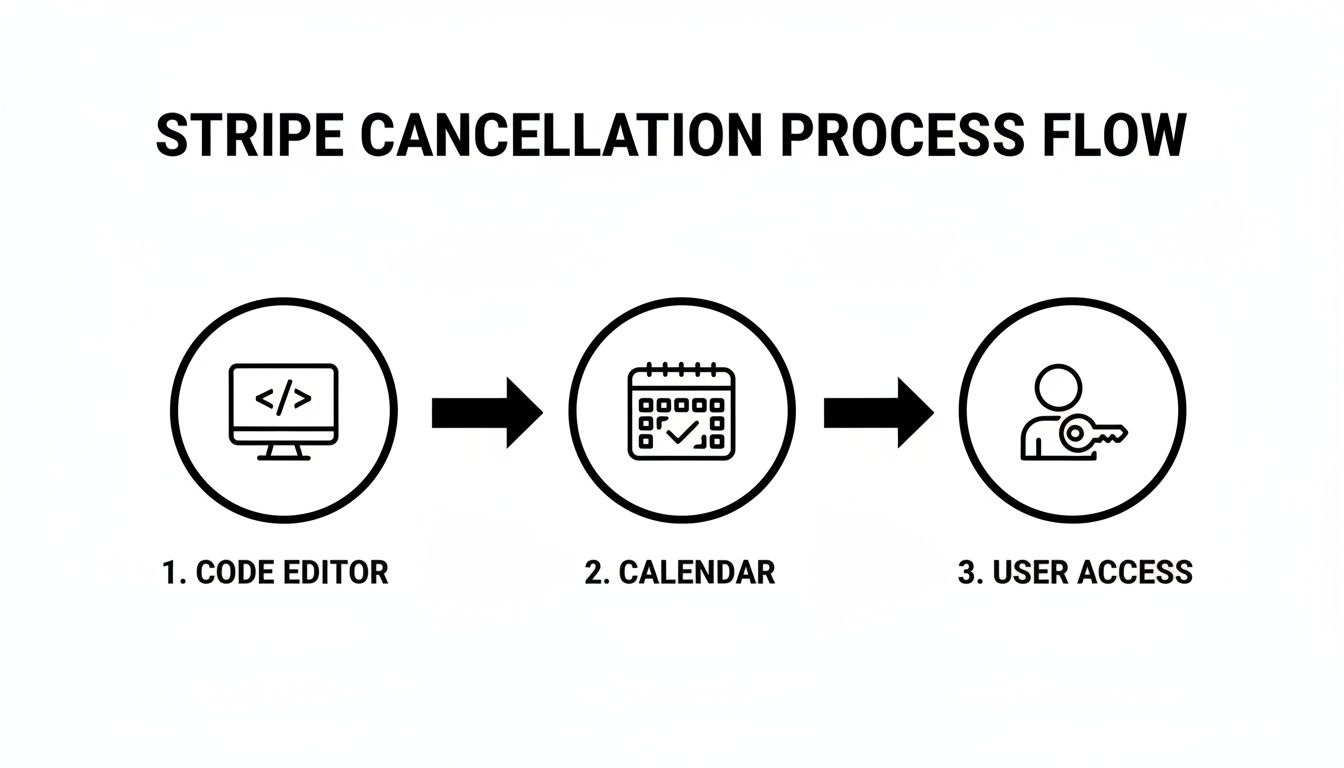
This diagram breaks it down nicely: your code listens for the cancellation event from Stripe and then automatically updates the user's status in your Mentor LMS database. It’s a hands-off system that lets you scale without drowning in admin work.
Listening for the Right Event
The single most important event you need to listen for is customer.subscription.deleted. This is the webhook that Stripe sends the instant a subscription officially terminates.
This could happen right away if you cancel it immediately, or it could happen at the end of the current billing cycle if you used the cancel_at_period_end option. By setting up a dedicated endpoint in your application to "listen" for this specific event, you can kick off your entire revocation workflow.
If you’re not comfortable writing the code yourself or need to connect multiple apps, you can look into some powerful Zapier automation examples. Tools like Zapier or Make can act as a no-code bridge between Stripe and your other systems.
You can even use webhooks for retention. For instance, the customer.subscription.updated event fires when a user schedules a cancellation (by setting cancel_at_period_end to true). This is a golden opportunity to trigger a win-back email campaign with a special offer. Teams using this tactic often recover 15-25% of customers who would have otherwise churned.
Handling the Webhook in PHP
Here’s a clean example for handling the customer.subscription.deleted event in PHP. It shows how you’d build a secure webhook endpoint: it listens for the event, verifies the request came from Stripe, finds the relevant user, and updates their access.
// Example in PHP (Laravel-style or plain)
$payload = @file_get_contents('php://input');
$sig_header = $_SERVER['HTTP_STRIPE_SIGNATURE'];
$endpoint_secret = 'whsec_YourWebhookSecretHere';

try {
    $event = StripeWebhook::constructEvent($payload, $sig_header, $endpoint_secret);
} catch (Exception $e) {
    http_response_code(400);
    exit();
}

if ($event->type === 'customer.subscription.deleted') {
    $subscription = $event->data->object;
    $subscriptionId = $subscription->id;

    // Find the user in your database by Stripe subscription ID
    $user = User::where('stripe_subscription_id', $subscriptionId)->first();

    if ($user) {
        // Revoke access in Mentor LMS
        $user->update(['subscription_active' => false, 'subscription_ends_at' => now()]);

        // Optional: Send goodbye / win-back email
        // Mail::to($user)->send(new SubscriptionEndedMail($user));
    }
}

http_response_code(200);
Critical Step: Signature Verification
I can't stress this enough: always verify the webhook signature withStripeWebhook::constructEvent(). It confirms the request is genuinely from Stripe and not a malicious actor trying to trick your system. Skipping this opens a massive security hole. I always verify the signature and log the event for debugging.
Notifying Users in Mentor LMS When a Subscription Ends
Getting the technical side of a Stripe subscription cancellation handled is one thing, but how you communicate that change to your student is where you really define their final experience with your brand. In Mentor LMS, I combine Stripe webhooks with the platform’s built-in notification and enrollment tools.
My workflow is straightforward:
- When the
customer.subscription.deletedwebhook fires, I update the user record in the database (e.g., setsubscription_statusto inactive). - Mentor LMS automatically revokes course access if you tie enrollment to subscription status using groups or membership features.
- I trigger an automated email inside Mentor LMS (or via Zapier or Make) with a friendly message.
No student should ever have to wonder if their cancellation actually went through. This keeps the experience smooth and prevents confusion.
How to Craft the Perfect "Goodbye for Now" Email
A good final email does more than just say "subscription cancelled." It needs to be clear, empathetic, and strategic. I never think of it as a final goodbye, but more of a "see you later."
Every cancellation email you send should do three key things:
- Thank them: Start by thanking them for being a member. A little gratitude goes a long way in making them feel valued, even as they're leaving.
- Confirm the details: Be crystal clear. State that their subscription has been cancelled and when their access officially ends. This simple confirmation prevents future headaches and support tickets.
- Leave the door open: Always include a direct link back to your course enrollment page. Make it incredibly easy for them to come back if they change their minds.
This isn't just about being polite; it’s a smart way to manage your offboarding process and maintain a professional, positive relationship.
I’ve learned from experience that this final email is a surprisingly effective retention tool. A simple, well-timed message can turn a churned customer into a future re-enrollment, simply by leaving the door open on good terms.
Turning a Cancellation into an Opportunity
This is where you can get clever. A cancellation doesn't have to be the end of the line. By building a "win-back" offer directly into your automated farewell email, you give them a compelling reason to stick around or come back soon.
It doesn’t have to be a huge giveaway. Think about adding a small incentive, like:
- A 20% discount code to rejoin.
- A special offer on a different, lower-cost course to keep them in your ecosystem.
- An invitation to a free resource, like a community Discord or a downloadable guide, to keep the relationship warm.
Suddenly, that transactional "cancellation confirmed" email becomes a soft pitch. You're respecting their decision but also giving them an easy, discounted path to return. While you're refining your sales strategy, you might find our guide on how to sell online courses helpful for other tactics.
By combining automated communication with a smart offer, you can manage the end of a Stripe subscription gracefully and even recover a good number of students you thought were gone for good.
Handling Edge Cases: Prorations, Refunds, and Failed Payments
In a perfect world, every subscription would run its full course. But you’ll quickly run into tricky situations—the edge cases like prorated refunds and failed payments that can throw a wrench in the works. Here are the most common ones I've handled and how I manage them.
How to Handle Prorations and Refunds
Most of the time, your refund and proration questions will come down to one thing: how the subscription was cancelled.
Cancel at period end (no proration): This is the most common and easiest option. The user keeps access until the end of the billing cycle, and no refund is needed. This covers the vast majority of cancellations.
Immediate cancel with proration: If I cancel mid-cycle using an immediate cancel, Stripe can issue a prorated credit or refund automatically. I only do this for policy violations.
Partial refunds: When a user requests a refund after canceling, I check how much time is left in the period and issue a partial refund manually through the Stripe Dashboard or API.
Upgrade/downgrade during cancellation: I avoid mixing these. If someone wants to switch plans, I update the subscription instead of canceling and creating a new one.
My rule of thumb is simple: always give users the "cancel at period end" option first. It improves retention and reduces support tickets dramatically.
What to Do When a Payment Fails
That "Payment Failed" notification is something no one wants to see. If payment fails repeatedly, Stripe auto-cancels after its retry schedule.
Sure, Stripe has its own dunning process that will automatically retry the card a few times. But I’ve found that a little proactive communication goes a long way.
I watch for invoice.payment_failed and customer.subscription.deleted events and send gentle reminder emails before full cancellation. Let them know what happened and give them a direct link to update their payment details. More often than not, it's just an expired card, and a single, helpful email can be the difference between keeping a customer and losing them for good.
This kind of hands-on management directly protects your bottom line. Your Monthly Recurring Revenue (MRR) in Stripe tells the story of your business's health. While top-tier SaaS companies can get their churn below 3%, many businesses are stuck in the 5-7% range. This level of volatility can be a real risk for subscription-based models. It's a stark contrast to platforms like Mentor LMS, where a one-time purchase model completely sidesteps the churn problem. If you want to dig deeper, you can find more details on tracking Stripe sales and subscriptions to get a better handle on these metrics.
By planning for these edge cases from the start, you build a system that's more resilient, professional, and fair for everyone involved.
Frequently Asked Questions
As you get into the nitty-gritty of managing Stripe subscriptions, you’ll find that a few common questions and tricky scenarios always seem to surface. Here are some quick, field-tested answers for the most frequent sticking points I see Mentor LMS users run into.
How Can I Safely Test My Cancellation Logic?
The golden rule here is simple: live in Stripe's Test Mode until your cancellation flow is absolutely bulletproof. You should never, ever experiment on live customer accounts.
What I always do is create a few test customers and sign them up for various subscriptions using Stripe's set of test card numbers. From there, you can really put your code through its paces:
- Trigger a cancellation at the end of the billing period using
cancel_at_period_end. - Try an immediate cancellation with the
cancel()API call. - Watch your webhook endpoint to confirm you’re getting the right events, like
customer.subscription.updatedorcustomer.subscription.deleted. - Most importantly, check that your Mentor LMS site is correctly revoking course access when it's supposed to.
A fantastic shortcut here is simulating webhook events directly from the Stripe Dashboard. This lets you test your endpoint’s response without having to wait for a subscription cycle to actually end, which is a huge timesaver.
What Is the Best Way to Handle Reactivations?
Handling a student who changes their mind and wants to come back really depends on when they ask. The status of their subscription is key.
If they were set to cancel at the end of the period but that date hasn't passed yet, it's an easy fix. The subscription is still active, just flagged for cancellation. All you need to do is send an API call to update the subscription and flip cancel_at_period_end back to false.
But, if the customer.subscription.deleted event has already fired, that subscription is gone for good. There's no bringing it back. The student will have to sign up for a brand new subscription through your standard checkout process. I always make sure my final "Sorry to see you go" email includes a clear link back to the course enrollment page to make this as painless as possible for them.
Pro Tip: A common mistake is trying to manually patch things up or recreate a "deleted" subscription on the back end. Don't do it. It's much cleaner and safer to have the user go through the standard checkout flow again. This guarantees a fresh, valid subscription record in both Stripe and your Mentor LMS database.
Can I Still Issue a Refund After a Subscription Ends?
Yes, absolutely. A subscription being canceled or inactive doesn't prevent you from issuing a refund.
Stripe keeps a complete history of customers and their payments. Just head into your Stripe Dashboard, pull up the customer's profile, and find the exact charge you need to refund in their payment history. From there, you can issue a full or partial refund. This is incredibly handy for those one-off customer service situations that sometimes pop up well after a student has canceled.
Take full control of your online education business with Mentor LMS. Build your course marketplace, own your code, and escape monthly fees forever. Get Mentor LMS today!