Customization
Color System
Customize the color scheme of Mentor LMS using CSS variables from the admin dashboard.
This guide explains how to customize the color scheme of Mentor LMS directly from the Admin Dashboard without requiring any code changes.
Changing Colors via Admin Dashboard
- Navigate to Dashboard → Settings → System
- Open the Style tab
- In the Custom Global Style section, modify the CSS variables
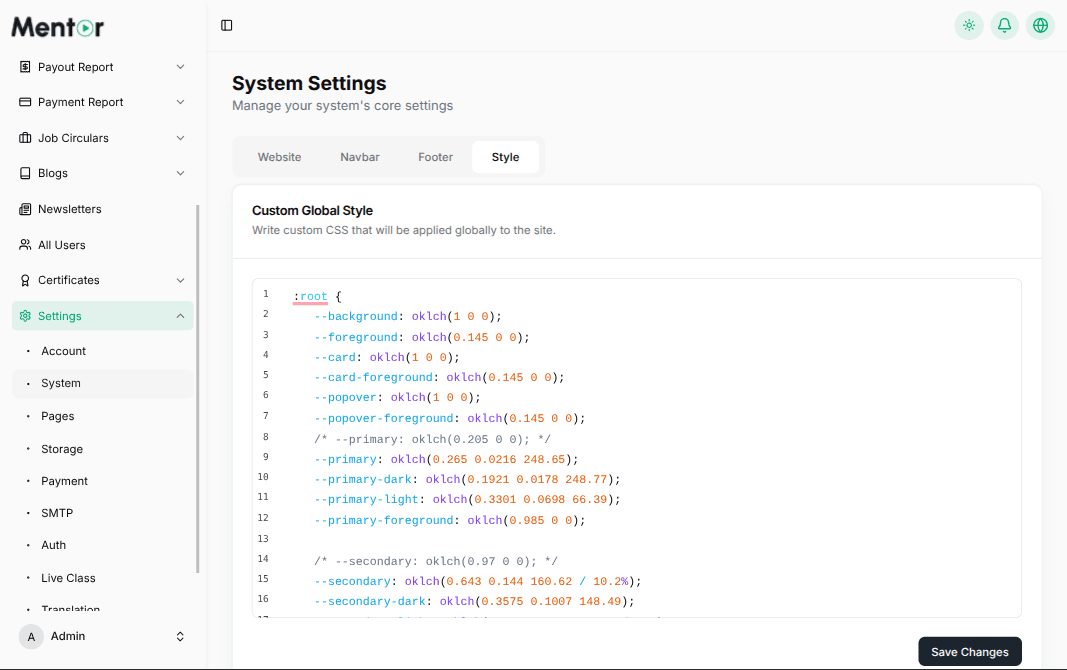
Changes take effect immediately across your entire application.
Available CSS Variables
Key Variables
| Variable | Purpose |
|---|---|
--primary | Main brand color (buttons, links, highlights) |
--secondary | Secondary accent color |
--background | Main background color |
--foreground | Main text color |
--card | Card and panel backgrounds |
--border | Border colors |
--muted | Muted/gray colors for less important elements |
--destructive | Error/danger colors (delete buttons, alerts) |
Light Mode (:root)
:root {
  --background: oklch(1 0 0);
  --foreground: oklch(0.145 0 0);
  --primary: oklch(0.265 0.0216 248.65);
  --primary-foreground: oklch(0.985 0 0);
  --secondary: oklch(0.643 0.144 160.62 / 10.2%);
  --secondary-foreground: oklch(0.6468 0.144588 160.7462);
  --muted: oklch(0.97 0 0);
  --muted-foreground: oklch(0.556 0 0);
  --accent: oklch(0.97 0 0);
  --accent-foreground: oklch(0.205 0 0);
  --destructive: oklch(0.577 0.245 27.325);
  --border: oklch(0.922 0 0);
  --input: oklch(0.922 0 0);
  --ring: oklch(0.87 0 0);
  --radius: 0.625rem;
}
Dark Mode (.dark)
.dark {
  --background: oklch(0.145 0 0);
  --foreground: oklch(0.985 0 0);
  --primary: oklch(0.985 0 0);
  --primary-foreground: oklch(0.205 0 0);
  --muted: oklch(0.269 0 0);
  --muted-foreground: oklch(0.708 0 0);
  --accent: oklch(0.269 0 0);
  --accent-foreground: oklch(0.985 0 0);
  --destructive: oklch(0.396 0.141 25.723);
  --border: oklch(0.269 0 0);
  --input: oklch(0.269 0 0);
  --ring: oklch(0.439 0 0);
}
The color system uses the OKLCH color space for better color consistency and accessibility across light and dark modes.