
What is a SCORM File? E-Learning Standard Explained for 2026
 Mahmudul Hasan Rafi·
At its heart, a SCORM file is a special type of .zip package that acts like a universal plug for your e-learning course. It’s the magic that lets your course content and your learning platform speak the same language, ensuring everything from launch to completion tracking just works.
What Is a SCORM File in Simple Terms
Imagine you've poured weeks into building a fantastic online course, complete with engaging videos, interactive quizzes, and polished slides. Now for the tricky part: how do you get it to run correctly on your client's specific learning platform? Or on any other platform you might use down the road?
This is the exact problem that the Sharable Content Object Reference Model (SCORM) was created to solve. Think of it as the industry-standard blueprint for packaging online training content so it's portable and predictable.
A SCORM file is simply a zipped folder containing everything your course needs to run. Inside, you'll find the HTML files, images, videos, and a crucial "manifest" file named imsmanifest.xml. This little file is the instruction manual that tells any compatible Learning Management System (LMS) how to launch, present, and track your content.
The real genius of SCORM lies in a few core principles:
- Interoperability: Your SCORM course will play on any SCORM-compliant LMS, much like a standard Blu-ray disc plays on any Blu-ray player. No custom integration needed.
- Reusability: You can easily pull out a single lesson or an entire module and reuse it in other courses without having to rebuild it from scratch.
- Durability: The standard was built to last. Content created with SCORM years ago still works on modern platforms, giving you peace of mind that your work won't become obsolete overnight.
For course creators, this means you can build your content once in a tool like Articulate Rise 360 or iSpring Suite and deploy it anywhere. For administrators using a platform like Mentor LMS, it means you can confidently import courses from different vendors and know that learner progress, quiz scores, and completion status will be tracked perfectly.
If this is your first time hearing about these systems, a great next step is to get familiar with the role of a Learning Management System in the e-learning ecosystem. Ultimately, SCORM is what turns your standalone content into a portable, trackable, and truly professional training asset.
Exploring the Anatomy of a SCORM File
At first glance, a SCORM file looks like any old .zip file. But it’s much more than that. It’s actually a self-contained package, meticulously organized with all the pieces your Learning Management System (LMS) needs to run and track a course.
Think of it like a flat-pack piece of furniture. You get one big box, and inside are all the wood panels, screws, and—most importantly—the instruction manual. If you open the box and just dump the parts on the floor, you'll have a mess. You need the manual to know how to put it all together. That’s why you always upload the entire .zip file to an LMS; unzipping it first is like throwing away the instructions.
When an LMS gets that package, it immediately hunts for one specific file: the imsmanifest.xml. This file is the course’s instruction manual.
The
imsmanifest.xmlfile is the blueprint for your course. It tells the LMS everything it needs to know: what the course is called, what content files are inside, how they’re structured into lessons or modules, and exactly what learner activity to track. Without this file, the LMS sees a random collection of assets with no context.
Key Components Inside the Package
So, what else is in the box besides the manifest? The rest of the package contains the actual learning materials, neatly organized to create a smooth experience for the student.
The entire structure is built on the three pillars of SCORM, which guarantee your content will work reliably across different platforms and for years to come.
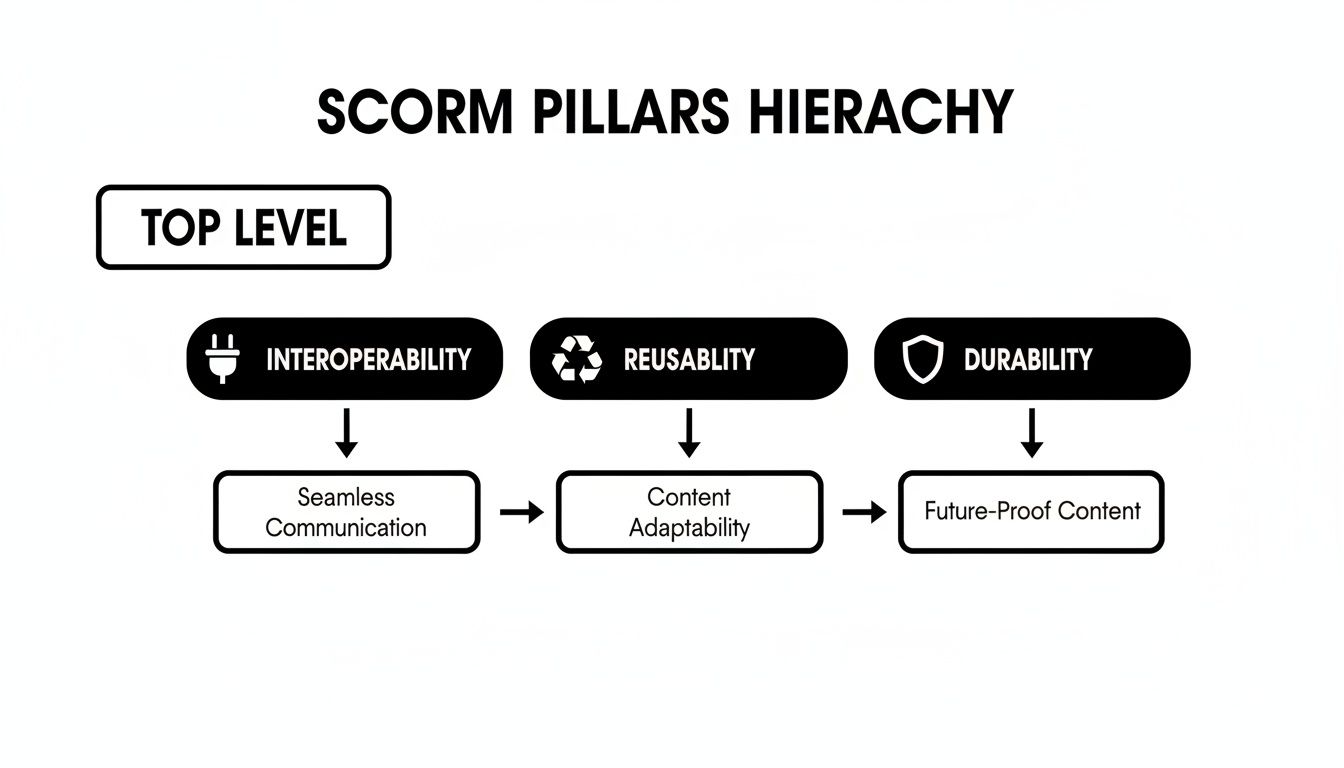
This hierarchy is the magic behind SCORM’s success. It ensures your course is Interoperable (it works in any compliant LMS), Reusable (you can mix and match content), and Durable (it won’t break when technology changes).
Inside this structure, you'll find two main types of content:
Asset Files: These are the raw ingredients of your course. We’re talking about all the media the learner will see, hear, or read—videos, audio clips, images, PDFs, and animations. They are the fundamental building blocks of the course content.
Sharable Content Objects (SCOs): A SCO is a "chunk" of your course that can be launched and tracked on its own. It could be a single lesson, an interactive module, or a final quiz. Each SCO is smart enough to talk to the LMS, reporting things like "This user completed the lesson" or "They scored 85% on the quiz." A course might be just one big SCO or, more commonly, a series of SCOs that the
imsmanifest.xmlfile arranges into a logical sequence for the learner.
Alright, you've poured your heart into creating a fantastic e-learning course. Now you're at the export screen, faced with a seemingly technical choice: SCORM 1.2 or SCORM 2026? It might look like a small detail, but picking the right version can be the difference between a smooth launch and a pile of support headaches.
So, what's the deal with these two? Let's break it down in practical terms.
SCORM 1.2: The Reliable Workhorse
Think of SCORM 1.2 as the industry's gold standard. It’s the version that has been around the longest, and because of that, it’s universally supported. I mean everywhere. It’s stable, lightweight, and completely predictable.
If your main goal is to make sure your course works flawlessly in just about any Learning Management System (LMS) you can find, SCORM 1.2 is your safest bet.
I most often use SCORM 1.2. It’s the most widely supported version across almost all LMS platforms (including Mentor LMS, Tutor LMS, LearnDash, Moodle, etc.). It’s stable, lightweight, and handles all the tracking I need: completion status, progress percentage, quiz scores, and time spent. For 95% of my courses, it's the sweet spot — reliable, simple, and universally accepted.
For most course creators, the data from SCORM 1.2 is more than enough. It tells you if someone finished the course, if they passed the quiz, and how long they took. Simple, clean, and effective.
SCORM 2026: The Advanced Specialist
SCORM 2026 (the modern name for what was originally SCORM 2004) is the more advanced option. Its killer feature is sequencing. This gives you incredible control over the learner's path. For instance, you could force a learner to watch every lesson video before the final quiz becomes available.
But this extra power comes with a trade-off. SCORM 2026 packages are bigger and far more complex under the hood. Not all LMS platforms, especially older or simpler ones, can handle its advanced rules perfectly. This can lead to frustrating import errors or tracking data that just doesn't show up correctly.
Honestly, unless you have a very specific, compliance-driven reason to lock down a learner's navigation, the complexity is often overkill.
SCORM 1.2 vs. SCORM 2026 At a Glance
This table should help you see the key differences at a glance and decide which version is the right fit for your course.
| Feature | SCORM 1.2 | SCORM 2026 (2004) |
|---|---|---|
| Compatibility | Excellent (Universally Supported) | Good (Widely supported but can have issues) |
| Tracking Status | Combines completion and success into a single status (e.g., "passed," "incomplete"). | Separates completion and success, allowing for more detailed reports (e.g., "completed, failed"). |
| Sequencing | No, learners can typically navigate freely. | Yes, allows you to create strict rules for how learners progress through content. |
| Package Size | Lightweight and smaller. | Larger and more complex, which can sometimes cause upload issues. |
So, what's the final verdict?
Unless you have a strict instructional design requirement for sequencing, stick with SCORM 1.2. It gives you solid, reliable tracking and maximum compatibility, which means a better, smoother experience for everyone involved.
How to Create and Package Your Course for SCORM
You've built your course content—the videos are shot, the quizzes are written, and the activities are ready to go. Now, how do you get it all into a format that any Learning Management System can actually understand and track?
This is where SCORM packaging comes in. And while it sounds incredibly technical, modern tools have done the heavy lifting for you. Let's walk through the exact process that professional course creators use to turn their materials into a simple, universal .zip file.
A Simple and Repeatable Process
The secret to working with SCORM is having a reliable, repeatable workflow. It almost always starts with a dedicated authoring tool, which handles the complicated technical bits behind the scenes. Here's how an expert does it:
- Build the course in a favorite authoring tool like Articulate Rise 360 or iSpring Suite. You can also use a powerful drag-and-drop course builder that has these capabilities built right in.
- Add all interactive elements: videos, quizzes, drag-and-drop activities, simulations, and assignments.
- Set completion criteria—for example, 100% slide/video completion + an 80% pass mark on the final quiz.
- Export as SCORM. In Rise 360, you'd navigate to Export → SCORM 1.2 or 2004 and choose settings. In iSpring, it's Publish → SCORM and you select the version and tracking options.
- Test the package locally first using SCORM Cloud’s free tester or a local LMS test environment.
- Upload the resulting .zip file into Mentor LMS (or any other LMS).
The final output is a single clean .zip file that contains everything—content, tracking logic, and reporting data. Once uploaded, the LMS can track progress, scores, and completion automatically.
Unlocking Powerful Insights with SCORM Tracking
Getting your course built and zipped up is a great first step, but it’s only half the story. The real magic of SCORM happens after a learner launches your course, when it starts sending rich, detailed data back to your Learning Management System (LMS). This is where you go from simply delivering content to truly understanding its impact.
Without SCORM, you’re basically flying blind. You might know someone clicked a button to mark a course "complete," but what does that really tell you? Did they actually absorb the material, or just speed-click to the finish line? Did they get stuck on a particular quiz question? You're often left with more questions than answers.
A SCORM package clears all that up. The standard creates a direct communication channel between your content and the LMS, enabling granular, automated tracking of all the important stuff. Your reporting suddenly goes from a simple, unreliable checklist to a powerful analytical tool.
From Vague Feedback to Auditable Reports
Let’s walk through a common scenario: a mandatory corporate "Compliance Training" course. Before SCORM, the course creator could only offer a list of employees who had checked a box saying they were done. There was no real data on quiz performance or time spent, making the reports feel flimsy and unprofessional.
Then, they repackaged that same course as a SCORM file and uploaded it to their LMS. The difference was night and day.
SCORM tracking made a huge difference in a corporate “Compliance Training” course I delivered last year. After packaging the course as SCORM and uploading it to Mentor LMS, I could see detailed reports showing exactly which modules each learner completed. I tracked average time spent per module (some modules that looked easy actually took learners 40% longer) and got automatic pass/fail data from quizzes with exact scores. Most importantly, the company client received a clean exportable report showing a 92% completion rate and an average quiz score of 89%, which satisfied their audit requirements. The detailed tracking turned vague “they finished” into clear, professional reports that built trust.
Having the ability to generate these kinds of detailed, auditable reports is huge. You can learn more about how platforms like Mentor LMS organize this data in a comprehensive admin dashboard and reporting feature.
Of course, once your SCORM course is live, its performance depends on the stability of the platform hosting it. Using professional website monitoring tools becomes important to ensure consistent uptime and a smooth experience for your learners. In the end, the data you get from a SCORM package gives you hard evidence of learning, helps demonstrate ROI, and provides the exact insights you need to make your courses better over time.
Troubleshooting Common SCORM Upload Problems
There's nothing more frustrating than spending hours on a course only to be met with a stubborn upload error. You’ve packaged everything perfectly, but your Learning Management System (LMS) just won't accept the file. It’s a common headache, but the good news is that most SCORM upload failures come down to a few simple, easy-to-fix mistakes.
More often than not, the problem is surprisingly basic: you're trying to upload the wrong thing. A SCORM package is a self-contained .zip file. The entire, unopened .zip file is what you need to upload. Never unzip it first and upload the contents individually—that’s like taking a book out of its cover and handing the loose pages to the librarian. The LMS needs the whole package to understand what it's looking at.
Your Quick Troubleshooting Checklist
If you’ve confirmed you're uploading the correct .zip file and it’s still failing, it’s time to dig a little deeper. Here’s a quick troubleshooting checklist from an expert:
- Make sure you’re uploading the entire .zip file—never extract it first.
- Check that the package contains a file named
imsmanifest.xmlin the root folder (this is the most important file). - Try re-exporting the course from your authoring tool (like Articulate Rise 360 or iSpring Suite) with default settings.
- Reduce file size if the package is too big (compress images or split long videos).
- Clear your browser cache or try uploading from a different browser.
- Test the package on SCORM Cloud (free tester) before uploading to your LMS—this quickly tells you if the problem is with the package or with your LMS.
My golden rule: Always test your package on SCORM Cloud first. It’s a free industry-standard tool that will catch 90% of problems before you even get to your own LMS.
Following this one rule will save you countless hours of frustration. Think of SCORM Cloud as your neutral third-party inspector. If your package fails to upload or run there, you know the problem is with the .zip file itself. If it works perfectly on SCORM Cloud but fails on your LMS, you’ve successfully narrowed the issue down to your specific LMS settings or configuration.
A Few Lingering SCORM Questions
Even after you get the hang of the basics, a few practical questions almost always surface. Let's clear up some of the most common ones I hear from course creators.
Can I Just Build a SCORM File Myself, Without an Authoring Tool?
Technically, you could. If you're a developer who loves hand-coding XML and wrangling JavaScript, it's possible to manually assemble a SCORM package. But for everyone else, this is a path I'd strongly advise against. It's incredibly time-consuming and prone to tiny errors that can break the whole thing.
Frankly, there’s no need to put yourself through that. Modern authoring tools like Articulate Rise 360 and iSpring Suite are built to do all the heavy lifting. They automatically package everything into a perfectly compliant .zip file. For 99% of us, an authoring tool isn't a luxury—it's the only sane way to go.
Are SCORM Courses Mobile-Friendly by Default?
This is a great question, and the answer often surprises people. SCORM itself has nothing to do with whether your course looks good on a phone. The standard is just a communication wrapper; it’s the content inside that determines responsiveness.
So, if you create your course with a modern, responsive authoring tool, it will look fantastic on any device. When a student launches that course from a mobile-friendly LMS like Mentor LMS, the SCORM wrapper simply does its job in the background, delivering that seamless experience. The key is starting with the right tools.
Is xAPI Making SCORM Obsolete?
I hear this one a lot. While xAPI (often called Tin Can API) is a fantastic, newer standard that can track learning experiences happening anywhere (not just inside an LMS), it’s not a SCORM killer. Far from it.
For the core job of delivering and tracking traditional courses inside a learning platform, SCORM is still the undisputed champion. It's reliable, universally supported, and does exactly what most course creators need it to do.
Think of it this way: SCORM is the proven workhorse for tracking course completion, scores, and session time. xAPI is a more specialized tool you bring in for complex scenarios, like tracking offline activities or game-based learning.
Most platforms, including Mentor LMS, maintain rock-solid SCORM support because it’s the right tool for the job for the vast majority of e-learning courses being created today.
Ready to launch your own professional e-learning platform? With Mentor LMS, you can sell courses, manage instructors, and track learner progress with full SCORM support—all with a one-time purchase. Get started at https://mentor-lms.com.